

Choose your wording
Choose a simple description style and vary wording between vehicles. Your facts and qualified price stay generated; price breakdowns and the general disclaimer are optional and off by default.
TRAIL BUDDY / BY LOTTRAIL
Along for the ride.
Find a vehicle, prepare the listing in Trail Buddy, then choose Post to Marketplace when it is ready. Adjust your options before opening Facebook, where you make the final check and publish. Browse the same inventory in cards or a detailed list.
Desktop Chrome · Configured supported sources · Your final publication decision.
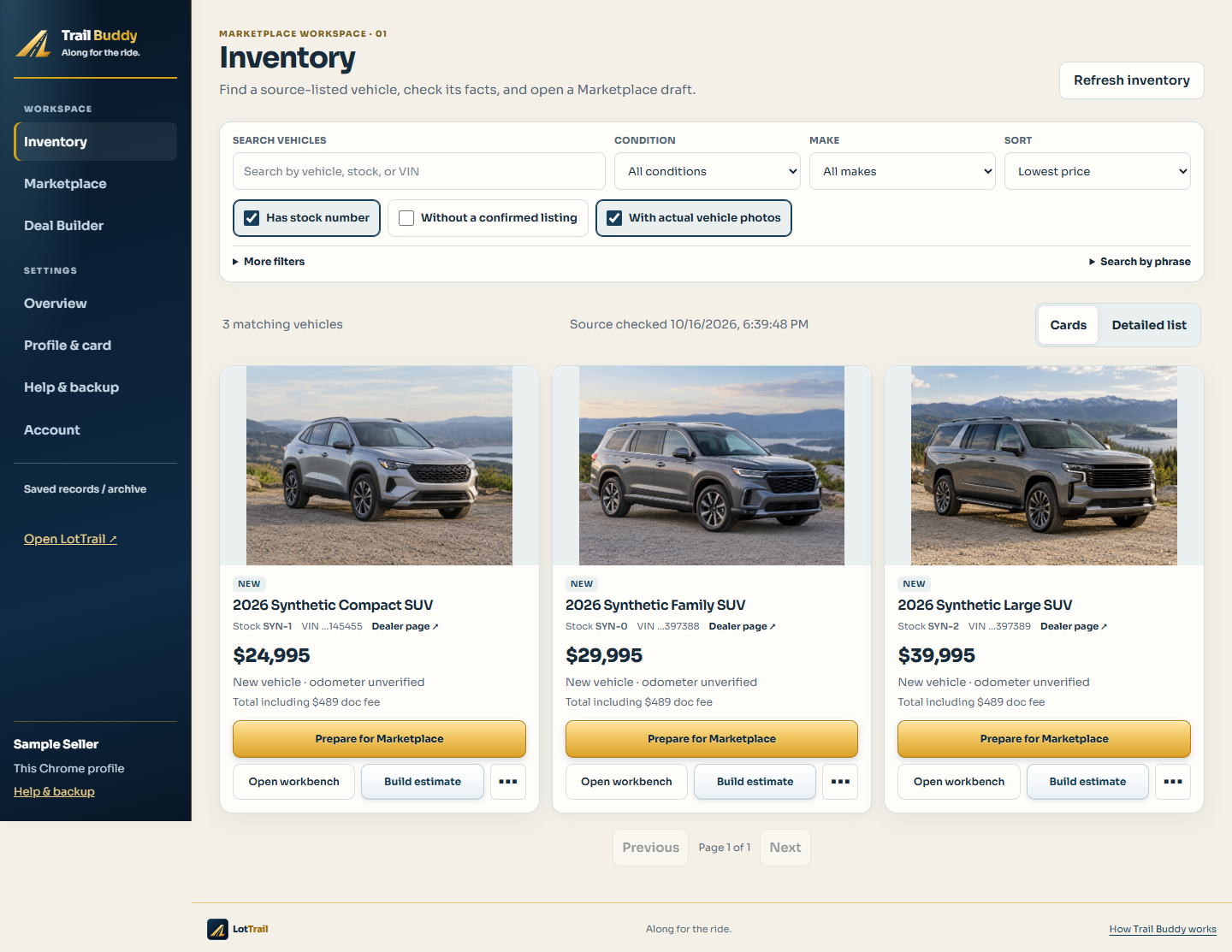
01 / FIND THE VEHICLE
Choose visual cards when photos lead the search. Switch to a detailed list when stock, price and vehicle facts matter more. Your view choice stays on this device and can be changed at any time.
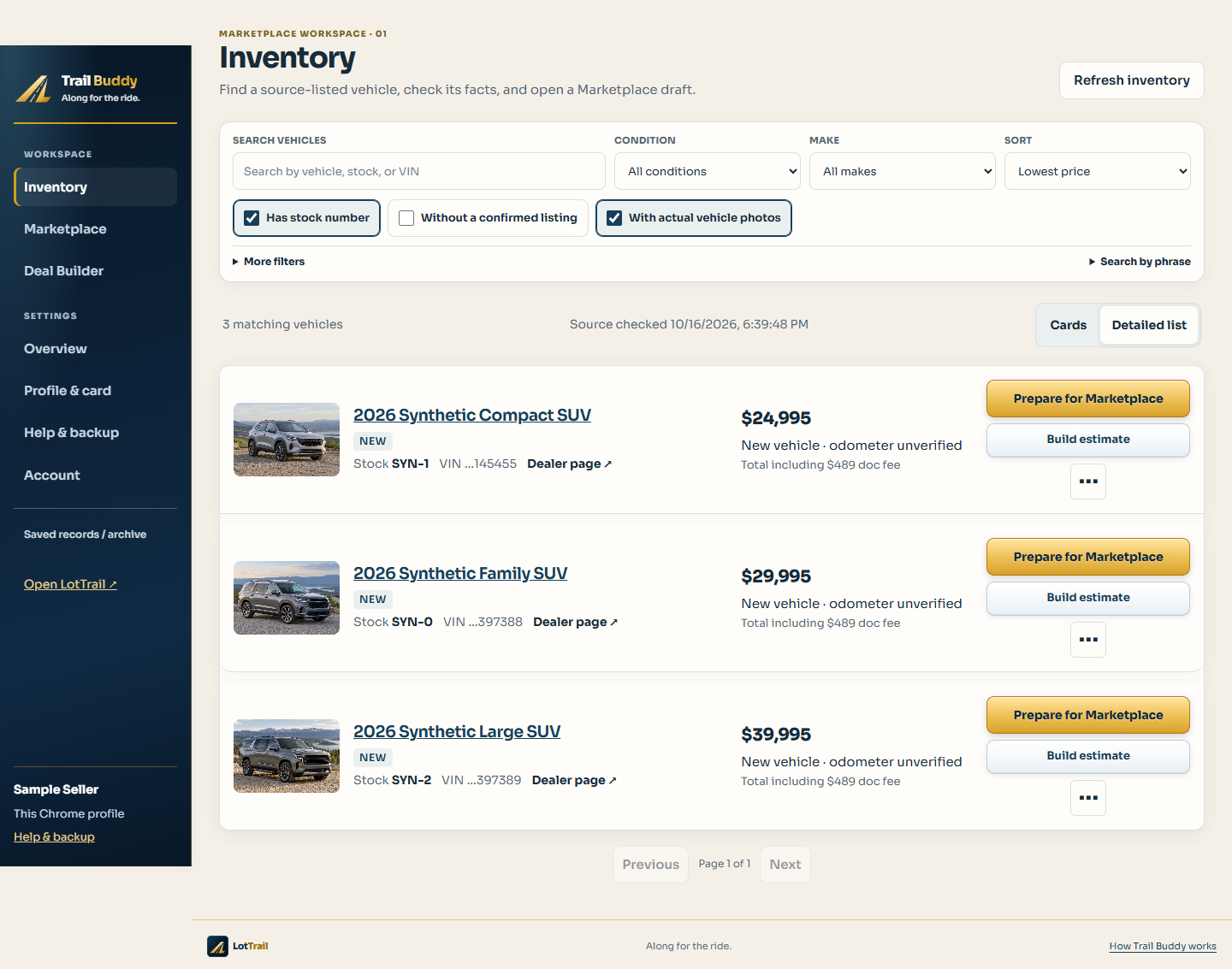
These are Trail Buddy extension screens. The LotTrail website has its own inventory screen; both remain clearly identified here.
02 / PREPARE THE LISTING
Your saved profile and description style apply when you prepare. Open the optional editor to adjust wording or photo order for this vehicle.
Choose a simple description style and vary wording between vehicles. Your facts and qualified price stay generated; price breakdowns and the general disclaimer are optional and off by default.
Move a photo forward or back, remove one, or restore the source gallery order. A failed secondary image can be skipped when the lead photo and most of the gallery load.
Preparation stays in Trail Buddy while the details and photos are checked. Adjust options if needed, then choose Post to Marketplace when ready. Check the finished form and publish in Facebook.
03 / YOUR DETAILS ON THE PHOTO
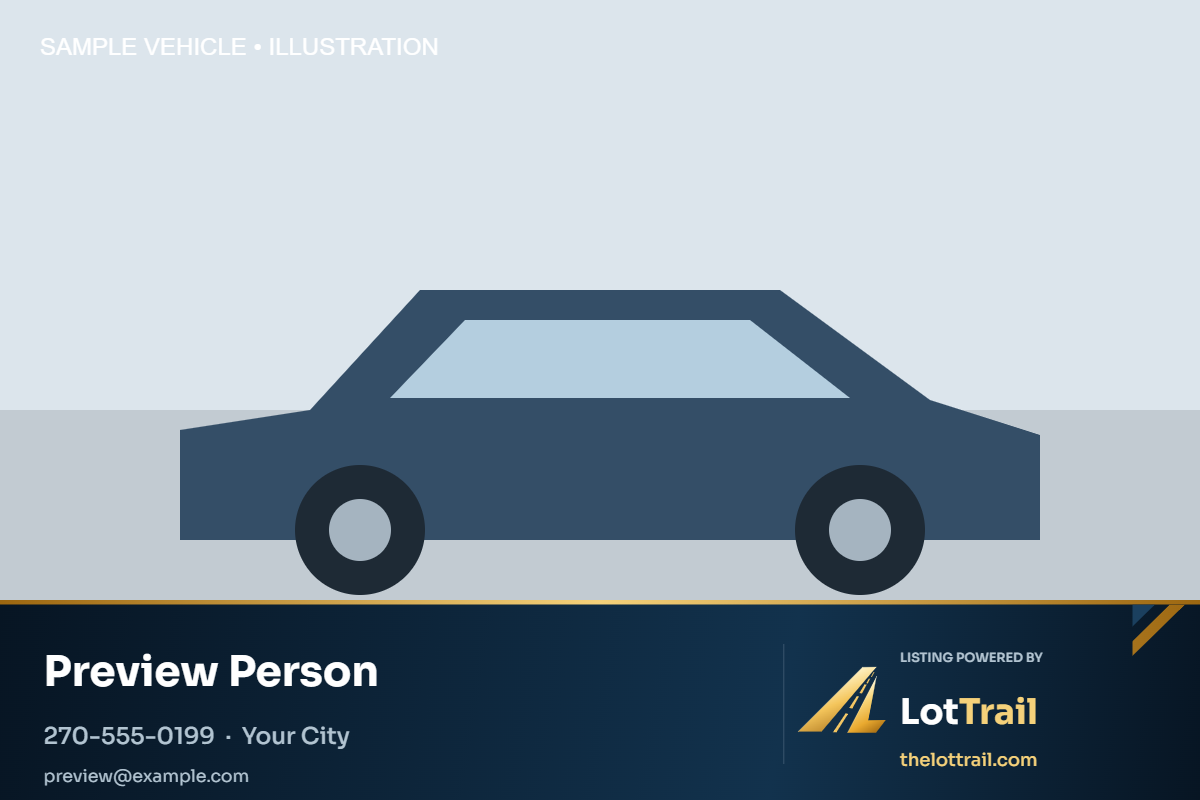
When enabled in your saved profile, Trail Buddy adds a branded bottom band to a prepared copy of the first vehicle photo. The existing all-photo choice remains available.
The original photo and its dimensions stay unchanged. Check coverage before using a large source banner.

04 / YOUR CARD GOES LAST
When your saved card preference is on, Trail Buddy creates a separate square card from your profile and reserves the last of Facebook’s 20 photo slots for it. With 20 usable vehicle photos, the card takes the 20th vehicle-photo position.
Your name and permitted contact methods make it yours. You can update the layout and colors in Profile & card.
The card stays separate and last. LotTrail credit remains on the card.
05 / BEFORE YOU HIT PUBLISH
Trail Buddy helps fill the current Facebook form. Check every field and uploaded image there before publishing.
Vehicle reading and photo preparation happen here first. Check the ready status and adjust any options before proceeding.
Choose Post to Marketplace to open Facebook and fill the prepared listing. Check the result and publish manually, then record its publication in Trail Buddy.
Facebook’s form can change. If a field or image does not transfer, correct it manually before publishing.
See how Trail Buddy fits with the workspace, or check the current installation and account options.
Trail Buddy is installed manually in desktop Chrome; Chrome Web Store distribution is not active. You check the details and publish in Facebook yourself.
Saved website listing work can be reviewed in a compatible approved Trail Buddy build. Price and gallery changes require a review. After you publish, return to LotTrail to confirm it. Older standalone extension history remains separate.
Trail Buddy is independent software, not an official Meta integration. Mark a listing as published only after you’ve posted it.